Shared Channel
A shared channel is a collaboration feature that allows users to access prompts created by others. Through this feature, you can benefit from the know-how and expertise of various users. It enables you to easily access a wide range of effective prompts made by others and use them according to your own needs.
Last updated Over 1 year ago
0. What is Shared Channel?
The shared channel operates on an invitation-based system. You can be invited to another user’s channel, or you can invite other users to your own shared channel.
1. Creating a Shared Channel
To share your prompts with other users, you need to create a shared channel first.
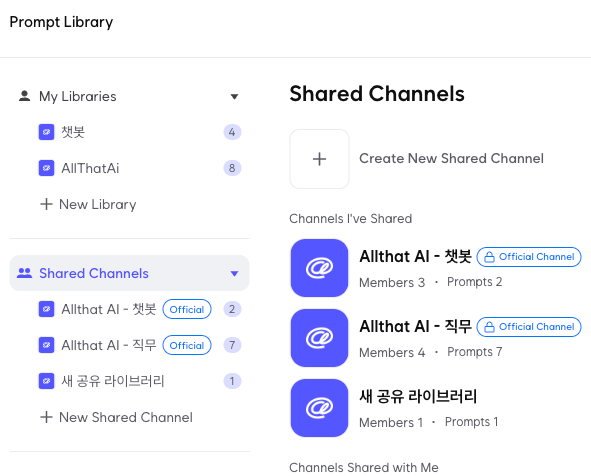
On the main screen, click the [Prompt Library] menu, then click the [Create New Shared Channel] button in the shared channel section.
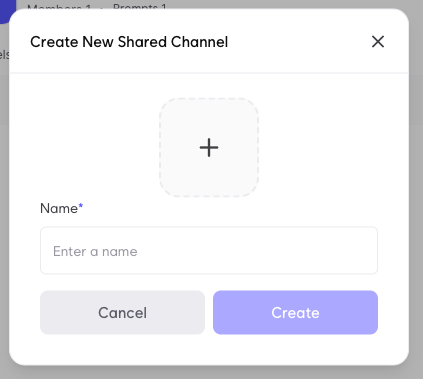
If you wish, you can add a logo photo for the shared channel, enter the channel name, and then click the [Create] button to finish.
2. Add Prompt to Shared Channel
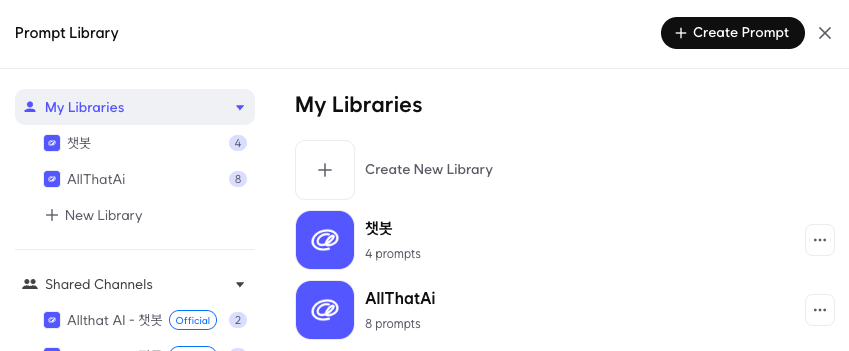
On the main screen, click the [Prompt Library] menu, then select your library that contains the prompt you want to share.
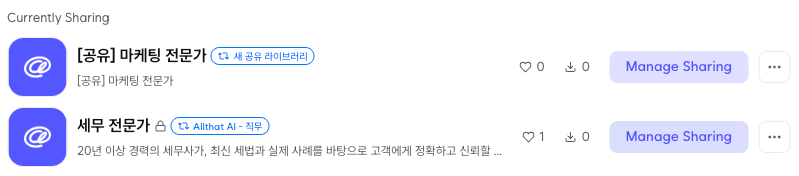
Click the [Manage Sharing] button for the prompt you want to share.
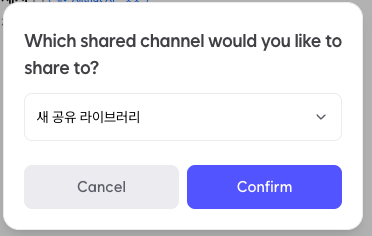
After selecting the channel you want to share with, click the [Confirm] button to finish.
3. Invite to shared channel
⚠️Only the creator of the shared library has the authority to invite others.⚠️
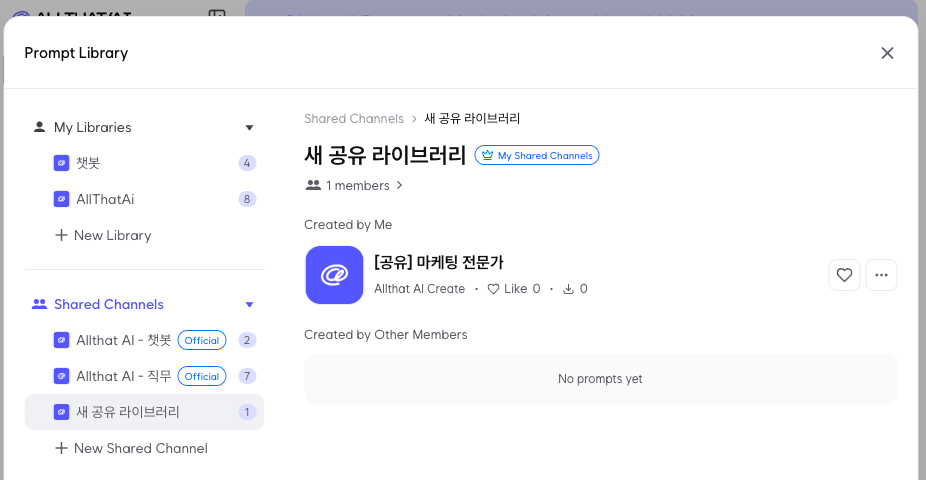
On the main screen, click the [Prompt Library] menu, select the shared channel, and then click the shared channel you want to invite.
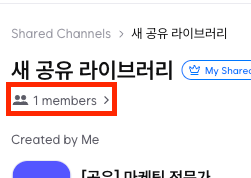
Click on that area.
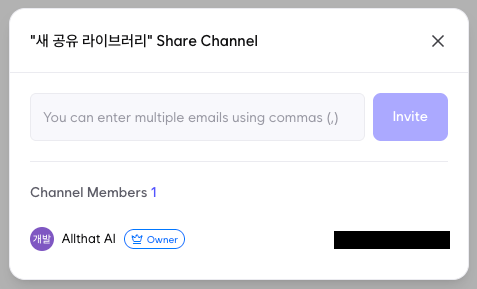
Enter the email address of the user you want to invite, then click the [Invite] button.